Testing in Practice · Part 11
Your first Selenium test (hands-on): Python, pytest, and the two errors every beginner hits
ProvaLab team · · 11 min read
Selenium is the oldest and most widely used tool for automating a web browser. It started in 2004, and its WebDriver protocol is now a W3C standard that every major browser supports. Many test suites in the world still run on it, so whatever tool your team chooses, you'll meet Selenium.
This post writes a first Selenium test in Python with pytest, against a small FoodNow order page. The first version fails twice for reasons that have nothing to do with the app. Those are the two errors almost every beginner hits, so we show them exactly. Then a proper version, with waits and a page object, finds a bug planted in the page. At the end, the same tests in Playwright, to compare. Every command and line of output below was run while writing this post.
How Selenium works
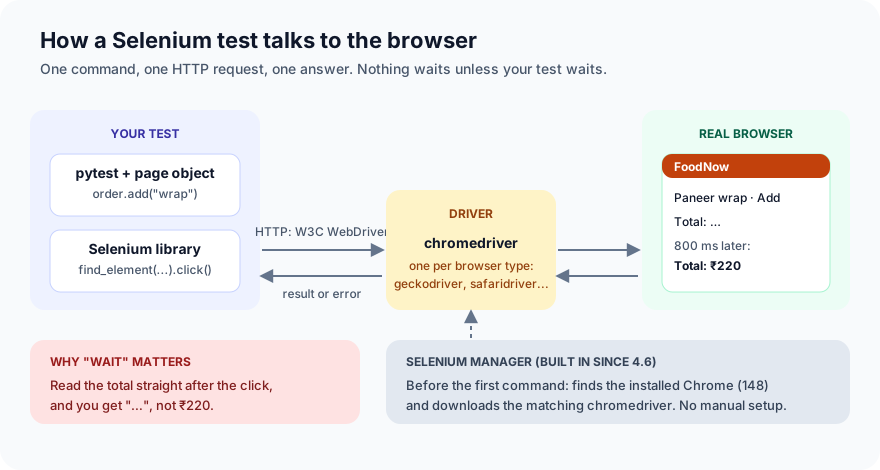
- Your test calls the Selenium library: find an element, click it, read its text.
- Selenium sends each command as an HTTP request in the WebDriver protocol to a driver: chromedriver for Chrome, geckodriver for Firefox, safaridriver for Safari.
- The driver controls the real browser, and sends back the result or an error.
You used to have to download the right driver for your browser version yourself, and update it every time the browser updated. Since Selenium 4.6, Selenium Manager does it. On our machine it found the installed Google Chrome 148 and downloaded chromedriver 148 into ~/.cache/selenium, with no setup.
One thing to remember from the diagram: every command is one request and one answer. Selenium doesn't know that your page is still loading something. If you don't tell it to wait, it won't.
Step 1: Set up
You need Python 3.10 or newer and Chrome:
mkdir foodnow-selenium && cd foodnow-selenium
python -m venv .venv && source .venv/bin/activate
pip install selenium==4.52.0 pytest==9.2.0
mkdir -p site tests
printf '[pytest]\npythonpath = .\n' > pytest.ini
Step 2: The page under test
The FoodNow order page lets you add dishes, remove them, and see the total. Like many real pages, it gets the total from the server, so it shows "…" for a moment (800 ms here) before the amount appears. And there's a cookie banner over everything until you press OK. Save it as site/index.html:
<!doctype html>
<html lang="en">
<head>
<meta charset="utf-8">
<title>FoodNow: your order</title>
<style>
  /* ...layout styles... */
  #cookies { position: fixed; inset: 0; background: rgba(0,0,0,.45); display: flex; align-items: flex-end; }
</style>
</head>
<body>
<header>FoodNow</header>
<main>
  <section>
    <h2>Menu</h2>
    <div class="item"><span>Paneer wrap · ₹180</span><button data-testid="add-wrap" data-name="Paneer wrap" data-price="180">Add</button></div>
    <div class="item"><span>Masala chai · ₹40</span><button data-testid="add-chai" data-name="Masala chai" data-price="40">Add</button></div>
    <div class="item"><span>Veg biryani · ₹260</span><button data-testid="add-biryani" data-name="Veg biryani" data-price="260">Add</button></div>
  </section>
  <section>
    <h2>Your order</h2>
    <div id="cart"></div>
    <p>Total: <span id="total">₹0</span></p>
    <button id="place">Place order</button>
    <p id="status" role="status"></p>
  </section>
</main>
<div id="cookies"><div><span>We use cookies to remember your basket.</span><button id="accept">OK</button></div></div>
<script>
  const cart = [];
  const DELIVERY = 40, FREE_FROM = 500;

  function render() {
    const el = document.getElementById("cart");
    el.innerHTML = "";
    cart.forEach((item, i) => {
      const row = document.createElement("div");
      row.className = "line";
      row.dataset.testid = "cart-line";
      row.innerHTML = `<span>${item.name}</span><button>Remove</button>`;
      row.querySelector("button").onclick = () => { cart.splice(i + 1, 1); render(); };
      el.appendChild(row);
    });
    // The total comes from the server (prices, offers, delivery), so it arrives a little later.
    document.getElementById("total").textContent = "…";
    setTimeout(() => {
      const food = cart.reduce((s, x) => s + x.price, 0);
      const total = food === 0 ? 0 : food + (food >= FREE_FROM ? 0 : DELIVERY);
      document.getElementById("total").textContent = `₹${total}`;
    }, 800);
  }

  document.querySelectorAll("[data-testid^=add-]").forEach(b =>
    b.onclick = () => { cart.push({ name: b.dataset.name, price: Number(b.dataset.price) }); render(); });
  document.getElementById("accept").onclick = () => document.getElementById("cookies").remove();
  document.getElementById("place").onclick = () =>
    document.getElementById("status").textContent = cart.length ? "Order placed" : "Your basket is empty";
</script>
</body>
</html>
(We left out the layout styles here to keep it short.) One bug is planted. See if you can spot it before the tests do.
Step 3: Fixtures for the browser and the page
tests/conftest.py serves the site folder on a free local port and opens Chrome for each test:
import functools
import http.server
import threading
from pathlib import Path

import pytest
from selenium import webdriver

SITE = Path(__file__).parents[1] / "site"


@pytest.fixture(scope="session")
def base_url():
    handler = functools.partial(http.server.SimpleHTTPRequestHandler, directory=SITE)
    server = http.server.ThreadingHTTPServer(("127.0.0.1", 0), handler)
    threading.Thread(target=server.serve_forever, daemon=True).start()
    yield f"http://127.0.0.1:{server.server_port}"
    server.shutdown()


@pytest.fixture
def driver():
    options = webdriver.ChromeOptions()
    options.add_argument("--headless=new")
    options.add_argument("--window-size=1280,800")
    driver = webdriver.Chrome(options=options)
    yield driver
    driver.quit()
webdriver.Chrome() is all it takes: Selenium Manager finds Chrome and the driver. --headless=new runs Chrome without a window, which is what you want in CI. Remove it to watch the test run. A fixed window size makes the layout, and so the test, the same on every machine.
Step 4: The first test, and the first error
Here's the test most people write first. Add a wrap, check the total. Save it as tests/test_first.py:
from selenium.webdriver.common.by import By


def test_add_a_wrap(driver, base_url):
    driver.get(base_url)
    driver.find_element(By.CSS_SELECTOR, "[data-testid=add-wrap]").click()
    total = driver.find_element(By.ID, "total").text
    assert total == "₹220"  # ₹180 wrap + ₹40 delivery
$ pytest tests/test_first.py
...
E       selenium.common.exceptions.ElementClickInterceptedException: Message: element click intercepted: Element <button data-testid="add-wrap" data-name="Paneer wrap" data-price="180">...</button> is not clickable at point (335, 163). Other element would receive the click: <div id="cookies">...</div>
E         (Session info: chrome=148.0.7778.215); For documentation on this error, please visit: https://www.selenium.dev/documentation/webdriver/troubleshooting/errors#elementclickinterceptedexception
...
============================== 1 failed in 2.12s ===============================
ElementClickInterceptedException. The button exists, but Selenium clicks like a person: at a point on the screen. At that point is the cookie banner, and the message even names it: Other element would receive the click: <div id="cookies">. Read the whole message. It usually tells you exactly what's in the way: a cookie banner, a chat widget, a sticky header, or a loading overlay.
Close the banner first, as a user would:
    driver.get(base_url)
    driver.find_element(By.ID, "accept").click()  # close the cookie banner first
    driver.find_element(By.CSS_SELECTOR, "[data-testid=add-wrap]").click()
Don't "fix" it with a JavaScript click (driver.execute_script("arguments[0].click()", button)). It clicks straight through the banner, which no user can do, so the test stops matching reality.
Step 5: The second error: reading too early
$ pytest tests/test_first.py
...
E       AssertionError: assert '…' == '₹220'
E
E         - ₹220
E         + …
============================== 1 failed in 1.00s ===============================
The click worked. Selenium then read the total immediately, while the page was still showing "…". The amount arrived 800 ms later, after the test had already failed.
The tempting fix is time.sleep(1). It passes today. It's also too slow on a fast machine and too short on a slow CI runner or a slow server day. A suite full of sleeps is both slow and flaky.
The right fix is an explicit wait: wait until a condition is true, up to a time limit, and continue the moment it is:
from selenium.webdriver.support.ui import WebDriverWait

WebDriverWait(driver, timeout=5).until(
    lambda d: d.find_element(By.ID, "total").text.startswith("₹")
)
This waits for "a real amount", not for "₹220". If the total is wrong, the wait still ends, and the assert afterwards shows the wrong value. If you wait for the exact expected text instead, a wrong total gives you a TimeoutException that doesn't say what the total was.
Selenium also has an implicit wait (driver.implicitly_wait(5)), which makes every find_element retry until the element appears. It wouldn't have helped here: the total element existed all along, it just had the wrong text. And mixing implicit and explicit waits can make timeouts unpredictable. Use explicit waits.
Step 6: A page object, and the real tests
As tests grow, the same locators and waits get copied into every test. A page object puts them in one class, so tests read like what a user does, and a change to the page is fixed in one place. Save this as tests/pages.py:
"""A page object: one place that knows how the order page is built."""
from selenium.webdriver.common.by import By
from selenium.webdriver.support import expected_conditions as EC
from selenium.webdriver.support.ui import WebDriverWait


class OrderPage:
    def __init__(self, driver, base_url):
        self.driver = driver
        self.base_url = base_url
        self.wait = WebDriverWait(driver, timeout=5)

    def open(self):
        self.driver.get(self.base_url)
        self.wait.until(EC.element_to_be_clickable((By.ID, "accept"))).click()
        self.wait.until(EC.invisibility_of_element_located((By.ID, "cookies")))
        return self

    def add(self, dish: str):
        self.driver.find_element(By.CSS_SELECTOR, f"[data-testid=add-{dish}]").click()
        return self

    def remove(self, name: str):
        for line in self.driver.find_elements(By.CSS_SELECTOR, "[data-testid=cart-line]"):
            if line.find_element(By.TAG_NAME, "span").text == name:
                line.find_element(By.TAG_NAME, "button").click()
                return self
        raise AssertionError(f"{name} is not in the basket")

    def items(self) -> list[str]:
        return [e.text for e in self.driver.find_elements(By.CSS_SELECTOR, "[data-testid=cart-line] span")]

    def total(self) -> str:
        # The total shows "…" while the price is being checked. Wait until it's a real amount.
        self.wait.until(lambda d: d.find_element(By.ID, "total").text.startswith("₹"))
        return self.driver.find_element(By.ID, "total").text

    def place_order(self) -> str:
        self.driver.find_element(By.ID, "place").click()
        self.wait.until(lambda d: d.find_element(By.ID, "status").text != "")
        return self.driver.find_element(By.ID, "status").text
The locators use data-testid attributes and ids, not long CSS paths or XPath like /html/body/main/section[2]/div[1]/button. Those break the moment someone adds a <div>.
The tests, in tests/test_order.py (delete test_first.py now):
import pytest

from tests.pages import OrderPage


@pytest.fixture
def order(driver, base_url):
    return OrderPage(driver, base_url).open()


def test_one_wrap_pays_delivery(order):
    order.add("wrap")
    assert order.total() == "₹220"  # ₹180 + ₹40 delivery


def test_free_delivery_from_500(order):
    order.add("biryani").add("biryani")
    assert order.total() == "₹520"  # ₹520 of food, delivery free


def test_remove_an_item(order):
    order.add("wrap").add("chai")
    order.remove("Paneer wrap")
    assert order.items() == ["Masala chai"]
    assert order.total() == "₹80"  # ₹40 + ₹40 delivery


def test_cannot_order_an_empty_basket(order):
    assert order.place_order() == "Your basket is empty"
Step 7: Take a screenshot when a test fails
A failing UI test without a screenshot sends you guessing. Add this hook to the end of tests/conftest.py. It saves a screenshot of the browser whenever a test that uses driver fails:
@pytest.hookimpl(wrapper=True)
def pytest_runtest_makereport(item, call):
    report = yield
    if report.when == "call" and report.failed and "driver" in item.fixturenames:
        path = Path("shots") / f"{item.name}.png"
        path.parent.mkdir(exist_ok=True)
        item.funcargs["driver"].save_screenshot(str(path))
        report.sections.append(("screenshot", str(path)))
    return report
Step 8: Run it
$ pytest tests -v
tests/test_order.py::test_one_wrap_pays_delivery PASSED                  [ 25%]
tests/test_order.py::test_free_delivery_from_500 PASSED                  [ 50%]
tests/test_order.py::test_remove_an_item FAILED                          [ 75%]
tests/test_order.py::test_cannot_order_an_empty_basket PASSED            [100%]

=================================== FAILURES ===================================
...
E       AssertionError: assert ['Paneer wrap'] == ['Masala chai']
E
E         At index 0 diff: 'Paneer wrap' != 'Masala chai'
E
E         Full diff: (-: missing in left side, +: extra in left side)
E           [
E         -     'Masala chai',
E         +     'Paneer wrap',
E           ]
---------------------------------- screenshot ----------------------------------
shots/test_remove_an_item.png
=========================== short test summary info ============================
FAILED tests/test_order.py::test_remove_an_item - AssertionError: assert ['Pa...
========================= 1 failed, 3 passed in 4.66s ==========================
We removed the paneer wrap, and the masala chai disappeared instead. The screenshot shows it:
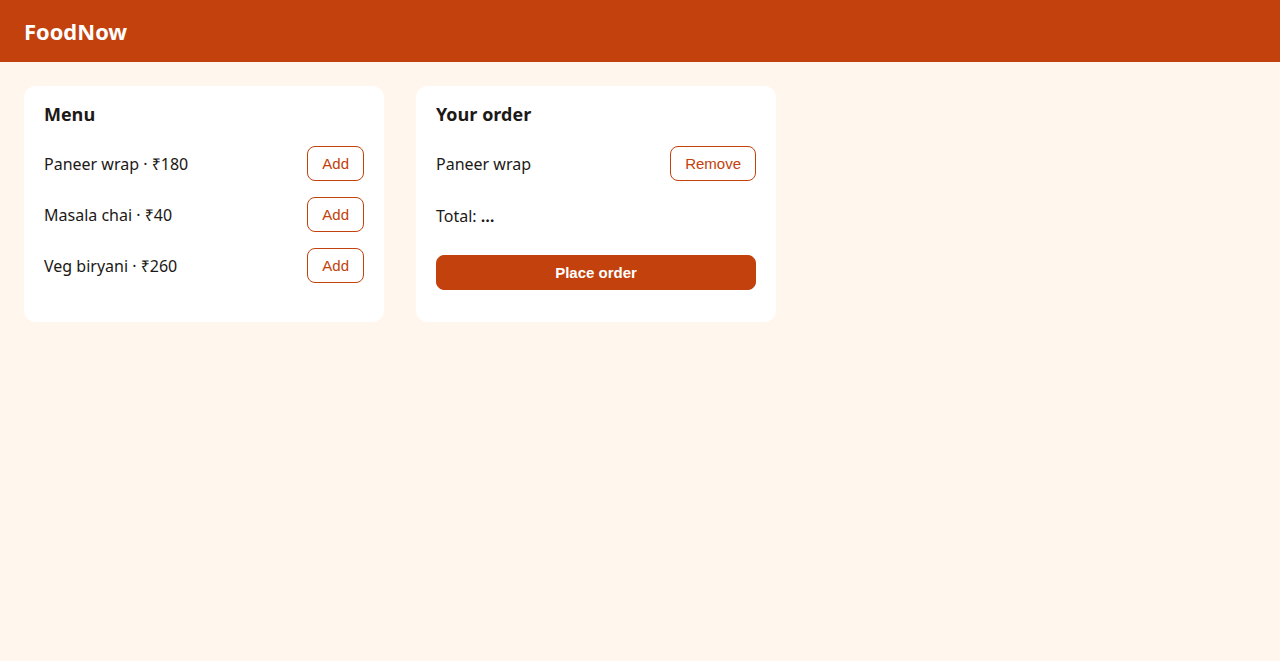
(The total shows "…" because the screenshot was taken the moment the test failed, while the page was still working out the new total.)
The bug is in the Remove handler: cart.splice(i + 1, 1) removes the item after the one you clicked. It should be cart.splice(i, 1). With only one item in the basket, Remove does nothing at all. The three other tests passed, because none of them removes anything. That's why each user action needs at least one test of its own.
After the fix, we ran the suite five times in a row:
4 passed in 5.56s
4 passed in 7.70s
4 passed in 5.66s
4 passed in 5.63s
4 passed in 5.54s
No flaky failures. The waits are doing their job.
Selenium or Playwright?
We wrote two of the same tests with Playwright for Python (our first Playwright post explains the setup):
def test_remove_an_item(page):
    page.get_by_test_id("add-wrap").click()
    page.get_by_test_id("add-chai").click()
    page.get_by_test_id("cart-line").filter(has_text="Paneer wrap").get_by_role("button", name="Remove").click()
    expect(page.get_by_test_id("cart-line").locator("span")).to_have_text(["Masala chai"])
    expect(page.locator("#total")).to_have_text("₹80")
No explicit waits: Playwright waits for an element to be ready before clicking, and expect(...) retries until the text matches or 5 seconds pass. On the buggy page:
E       AssertionError: Locator expected to have text '['Masala chai']'
E       Actual value: ['Paneer wrap']
...
1 failed, 1 passed in 7.68s
On the fixed page, 2 passed in about 3 to 4 seconds. (Our first Playwright attempt also failed on the fixed page: to_have_text on the whole line compared "Masala chaiRemove", including the button's text. Every tool has its traps.)
| Selenium | Playwright | |
|---|---|---|
| Waiting | You add explicit waits | Built in: actions and expect wait automatically |
| Browsers | Chrome, Firefox, Safari, Edge, through each vendor's driver | Chromium, Firefox, WebKit builds that Playwright installs |
| Languages | Java, Python, C#, JavaScript, Ruby | JavaScript/TypeScript, Python, Java, C# |
| Standard | W3C WebDriver, supported by browser vendors | Its own protocol |
| Grid / cloud | Selenium Grid, and almost every device cloud | Its own remote mode, and growing cloud support |
| Extras | Small core; add reporting yourself | Trace viewer, video, network mocking built in |
Choose Selenium when your team already has a Selenium suite, needs real Safari or the widest set of languages, or runs on a device cloud built around WebDriver. Choose Playwright for a new suite where speed of writing and built-in waiting matter most. Both find the same bug, as long as someone writes the test that removes something.
Common mistakes
time.sleep()everywhere. Slow when the page is fast, flaky when it's slow. Wait for a condition withWebDriverWait.- Waiting for the expected value. A wrong value then gives a timeout instead of the actual value. Wait for "ready", then assert.
- JavaScript clicks to get past overlays. They click through things users can't. Close the overlay, as a user would.
- Absolute XPath and long CSS paths. Use ids,
data-testidattributes, or text and roles users see. - Locators copied into every test. Use page objects, so a change to the page is fixed in one place.
- No screenshot on failure. Add the hook from Step 7 on day one.
- Mixing implicit and explicit waits. It makes timeouts unpredictable. Pick explicit waits.
What's next
In Part 12 of Testing in Practice we write your first Cypress test: the same FoodNow order page, the Cypress way, and what's different about a tool that runs inside the browser.
ProvaLab's QA Infrastructure runs Selenium tests like these on browsers in the cloud, with a live view of the browser while the test runs. ProvaLab's pytest plugin sends each result to the ProvaLab test management system, with the screenshot attached and the test's history across runs. See it in the two-minute product tour.
See ProvaLab working on a real app
Your coding agent runs the tests, reads the failures and fixes them.