Hands-On Testing · Part 1
UI testing explained: what it is, how it works, and Selenium vs Playwright vs Cypress
ProvaLab team · · 8 min read
Testing Basics covered the ideas. This new series, Hands-On Testing, covers the practice: UI testing, API testing, security testing and load testing, each with a concepts post and a post where you build something that runs.
We start with the kind of testing most people picture when they hear the word: a program that opens a browser and uses your app like a person would.
What is UI testing?
UI testing (user interface testing) checks an application through the same interface users see: pages, buttons, forms and screens, in a real browser or on a real device.
It sits at the top of the testing pyramid: the closest to a real user, and also the slowest and most expensive kind of test to write and maintain. That's why the pyramid says to have a few UI tests, for the journeys that matter most, not hundreds.
Two terms you'll hear alongside it:
- End-to-end (E2E) testing: a UI test that follows a complete journey through the whole system, such as search → add to cart → pay → see confirmation. Most UI tests of any value are end-to-end tests.
- Visual testing: comparing screenshots against a known-good version to catch layout and styling changes. A specialised branch of UI testing.
What UI tests are good at, and bad at
| Good at | Bad at |
|---|---|
| Proving a whole journey works, front to back | Pinpointing why something failed |
| Catching integration problems between front end and back end | Running fast (seconds per test, not milliseconds) |
| Checking what users actually see, in real browsers | Being stable: they depend on timing, data and the environment |
| Cross-browser and cross-device checks | Testing business logic (unit tests do that far more cheaply) |
The rule of thumb: test the logic with unit tests, the joins with integration tests, and the journeys with UI tests. A UI test that checks fifty discount-code combinations is doing a unit test's job, fifty times slower.
How a UI test works
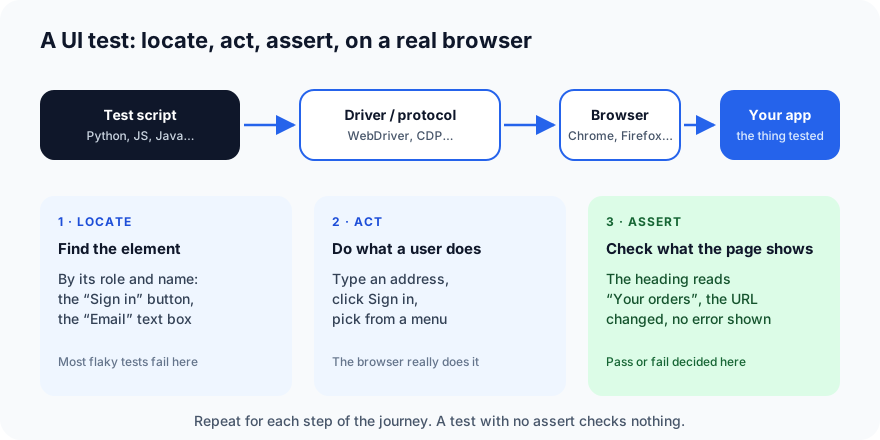
Every UI test, in every tool, is the same three steps repeated:
- Locate an element on the page: the email field, the "Sign in" button.
- Act on it: type, click, select, scroll.
- Assert what the page shows afterwards: the heading, the URL, a message, the absence of an error.
Here is a complete sign-in test in Playwright for Python. Even if you've never seen Playwright, you can read it:
def test_customer_can_sign_in(page):
    page.goto("https://staging.example.com/sign-in")
    page.get_by_label("Email").fill("[email protected]")
    page.get_by_label("Password").fill("correct-horse-battery")
    page.get_by_role("button", name="Sign in").click()
    expect(page.get_by_role("heading", name="Your orders")).to_be_visible()
Locate (get_by_label), act (fill, click), assert (expect … to_be_visible). We'll build and run this for real in Part 2.
Between the script and the browser sits a driver or automation protocol. Selenium uses the WebDriver standard, a W3C protocol every major browser supports. Playwright and Cypress talk to browsers more directly, which is a large part of why they feel faster.
Locators: the skill that decides whether your tests survive
The single biggest cause of broken UI tests is the way they find elements. A test that looks for div.col-md-6 > form > button.btn-primary breaks the day a designer changes a class name, even though the app works perfectly.
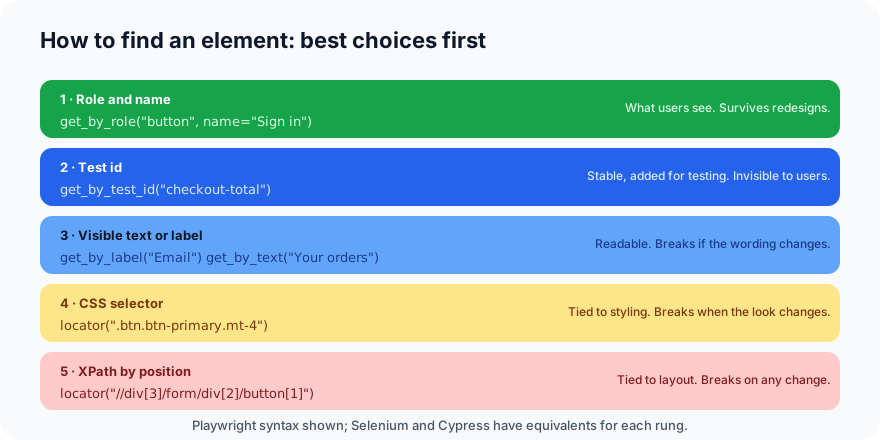
The order of preference most teams settle on:
- Role and accessible name (
get_by_role("button", name="Sign in")). This is how a screen reader sees the page, so it matches what users see and ignores styling. It also quietly pushes your app towards being accessible. - Test IDs (
data-testid="checkout-total"), attributes added to the HTML purely for tests. Very stable; the only cost is asking developers to add them. - Visible text and labels. Readable, but tied to wording and language.
- CSS selectors. Fine for structure that won't change; fragile when tied to styling classes.
- XPath by position. Avoid. It breaks whenever anything moves.
A good test reads like a description of what a user does. If you can't tell what a locator points at without opening the page, it's the wrong locator.
Why UI tests go flaky, and what to do about it
A flaky test passes and fails on different runs with no code change. UI tests are the flakiest kind, for predictable reasons:
| Cause | What it looks like | Fix |
|---|---|---|
| Timing | The test clicks before the button exists, or asserts before data loads | Use the tool's built-in waiting (Playwright and Cypress wait for elements automatically). Never use fixed sleeps |
| Test data | Two tests use the same account and collide; yesterday's order changes today's counts | Each test creates or picks its own data; reset state between tests |
| Environment | The staging server is slow or restarting | Run a smoke test first; retry only network-level failures |
| Order dependence | Test B only passes if test A ran first | Every test signs in and sets up what it needs itself |
| Animations and pop-ups | A cookie banner covers the button; a fade-in isn't finished | Dismiss banners in setup; assert on the final state, not the animation |
| Fragile locators | The class name changed | Climb the locator ladder above |
Flaky tests are dangerous, not just annoying: once people learn to re-run red tests until they pass, real failures get re-run away too (see Part 17). Treat a flaky test as a bug in the test suite and fix it the same week.
Selenium vs Playwright vs Cypress
The three tools almost every team chooses between:
| Selenium | Playwright | Cypress | |
|---|---|---|---|
| First released | 2004 | 2020 | 2017 |
| Languages | Java, Python, C#, JavaScript, Ruby, Kotlin | JavaScript/TypeScript, Python, Java, C# | JavaScript/TypeScript only |
| Browsers | All major browsers, via WebDriver | Chromium, Firefox, WebKit (Safari engine) | Chrome-family, Firefox, WebKit (experimental) |
| How it drives the browser | WebDriver protocol (a W3C standard) | Direct protocol connections; one API for all three engines | Runs inside the browser alongside your app |
| Automatic waiting | No; you write explicit waits | Yes | Yes |
| Multiple tabs and origins | Yes | Yes | Limited |
| Mobile | Via Appium (real devices) | Device emulation in desktop browsers | Viewport emulation only |
| Built-in trace, video, screenshots | Screenshots; the rest via add-ons | Yes, all three, with a trace viewer | Yes |
| Best for | Large existing suites, language flexibility, the widest browser and device coverage | New projects wanting speed and reliability across all engines | Front-end teams working in JavaScript who want a fast developer experience |
Some honest observations:
- Selenium is the industry standard with the largest ecosystem and the most job listings. Its WebDriver protocol is why it works everywhere, including real mobile devices through Appium. Its main cost is that you manage waiting yourself, which is where many flaky Selenium suites come from.
- Playwright was built by the team that originally created Puppeteer at Google, after they moved to Microsoft. It's fast, waits automatically, tests all three browser engines with one API, and its trace viewer (a recording of every step, with screenshots and network calls) is the best debugging tool of the three. It is the default choice for new projects today.
- Cypress has the most pleasant developer experience for front-end engineers: tests run in the browser with a live, time-travelling view. The trade-offs are JavaScript-only, weaker multi-tab and cross-origin support, and a paid service for parallel runs and recordings.
If you're starting from nothing, pick Playwright. If your team already has a Selenium suite that works, there is no need to rewrite it. If your team is all front-end JavaScript developers, Cypress will make them happiest.
Where UI tests run
- On your laptop while writing them.
- In the CI pipeline on every change, usually headless (no visible browser window), as described in Part 23 of Testing Basics.
- On a browser grid or device cloud when you need many browsers, operating systems and real phones at once, far more than one machine can hold. This is what services like ProvaLab's QA Infrastructure, BrowserStack and Sauce Labs provide.
Seven habits of good UI tests
- Test journeys, not pages. "A new customer can sign up and place an order" beats "the sign-up page has an email field".
- Keep them few and valuable. Push everything else down the pyramid.
- Use role-based locators or test IDs.
- Make every test independent: its own data, its own sign-in.
- Never sleep. Wait for a condition, not a number of seconds.
- Assert on what the user sees, not on internal state.
- Record on failure. A screenshot, video or trace turns a red test into a bug report in seconds.
What's next
In Part 2 we build real tests like the one above: install Playwright, write the test, run it headless and headed, watch it fail, read the trace, and add it to a pipeline.
ProvaLab's QA Infrastructure runs Playwright and Selenium tests on real browsers and devices in the cloud, records every session, and hands the recording and logs back to your coding agent when a test fails. See it in the two-minute product tour.
Prefer to read offline? The whole Hands-On Testing series is one free PDF: get the PDF.
See ProvaLab working on a real app
Your coding agent runs the tests, reads the failures and fixes them.